 WA Backup
WA Backup
WA Backup
Chats, photos, videos and documents saved to your own private cloud. Encrypted on your phone before anything leaves it.
Start the setupWA Backup on the same Android phone that runs your WhatsApp.
Your email plus a password of at least 8 characters. Created in the app in seconds.
WhatsApp's encrypted-backup key. Step 4 shows exactly where to find it.
About five minutes from install to first backup. After that, everything runs on its own. Prefer to watch? The whole flow fits in 39 seconds.
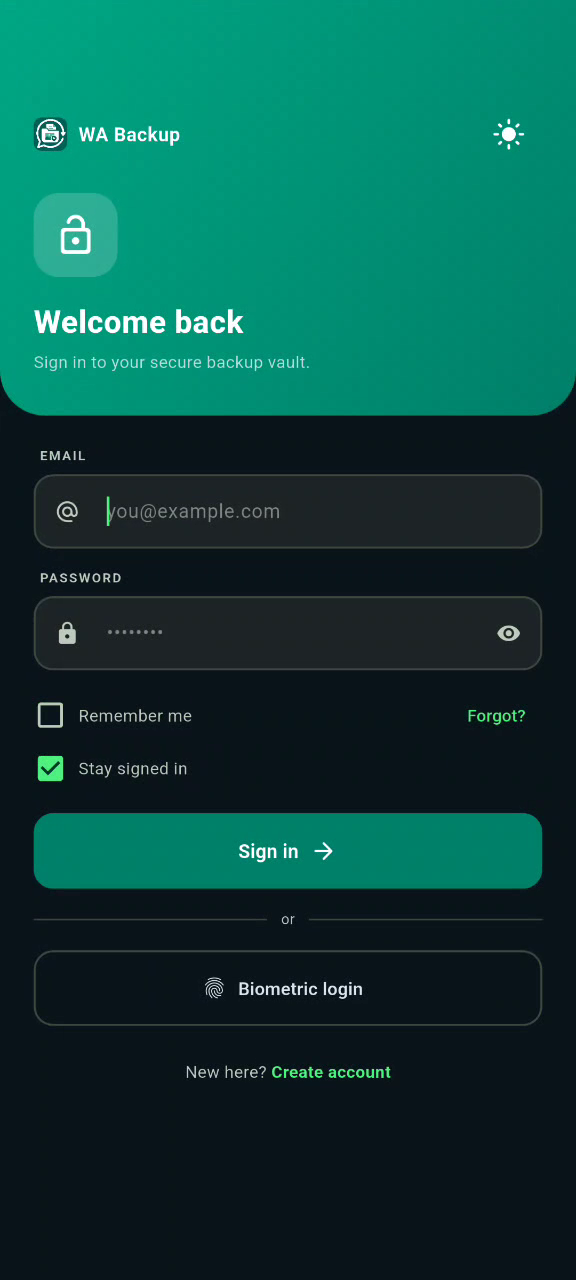
Open the app, enter your email and a password of at least 8 characters, then tap Register. Already registered? Sign in instead.
Tap Grant storage access and allow the permission Android asks for. The button changes to Access granted once it works. This lets the app read the WhatsApp folder:
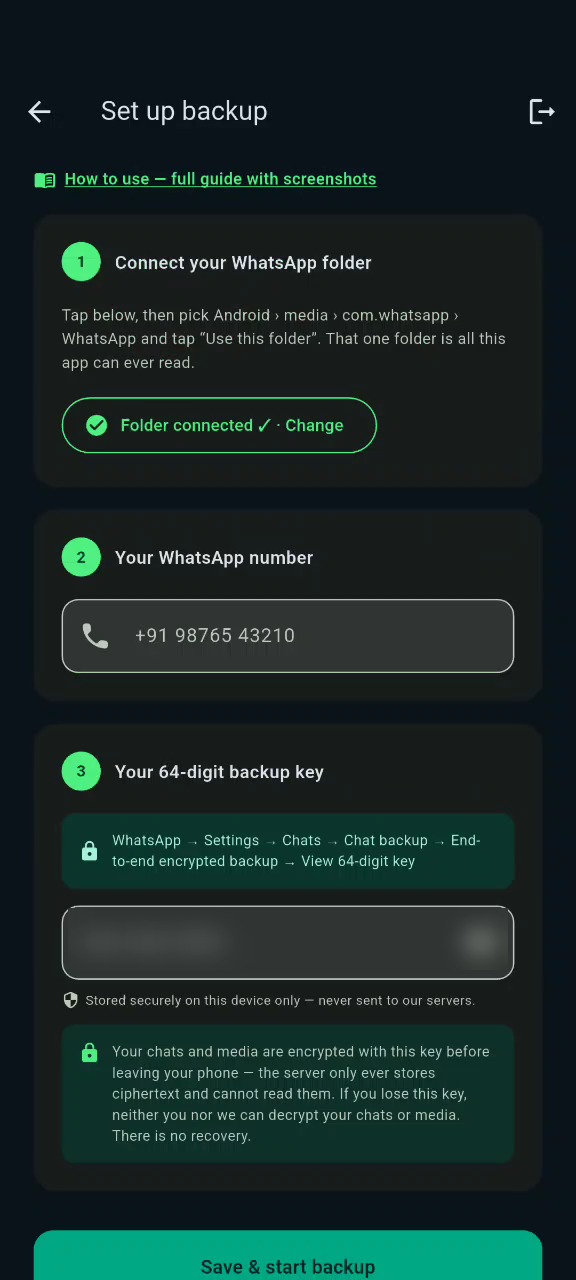
Type the number you use with WhatsApp, including the country code, for example +91 98765 43210. It labels your backups so you always know which phone they came from.
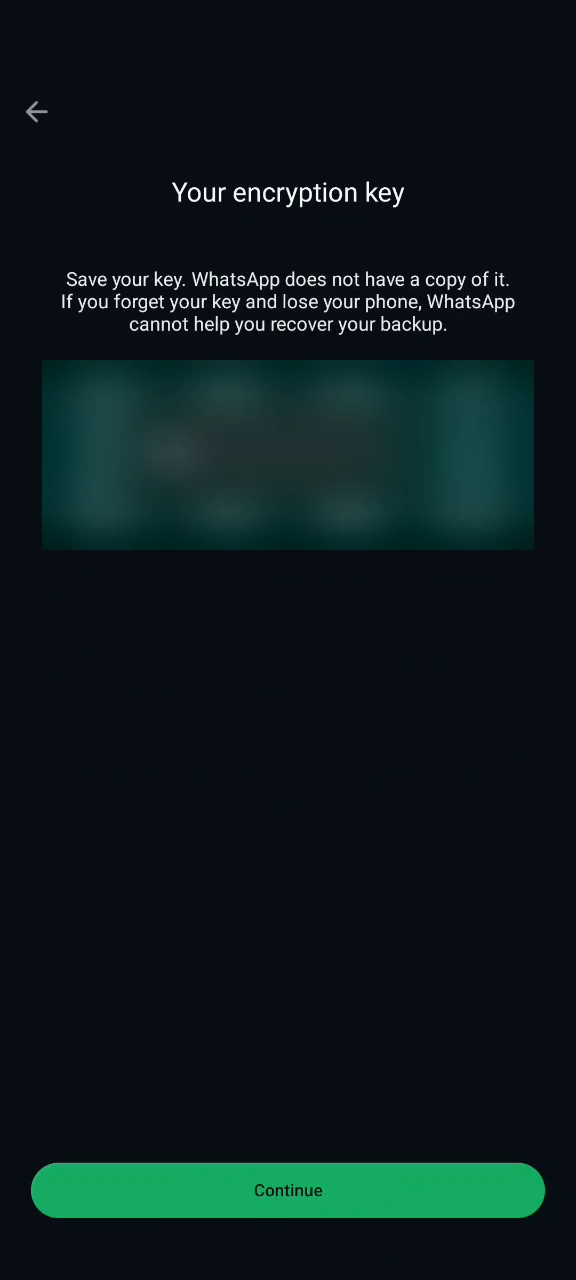
WhatsApp protects backups with a 64-digit key. To view yours, open WhatsApp and follow:
Back in WA Backup, paste the key into the key field. Spaces are removed automatically; the app just needs all 64 characters (digits 0 to 9 and letters a to f).
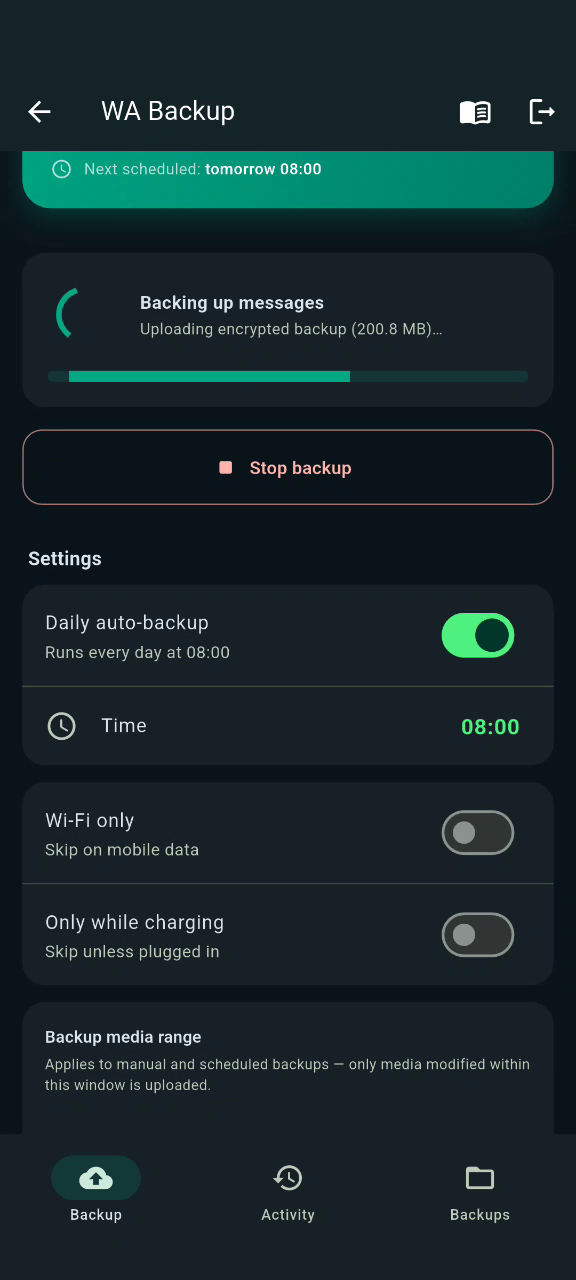
Tap Save & start backup. The app uploads your encrypted chat database exactly as WhatsApp stored it, then your media, encrypted on your phone first. Every later run uploads only what is new.
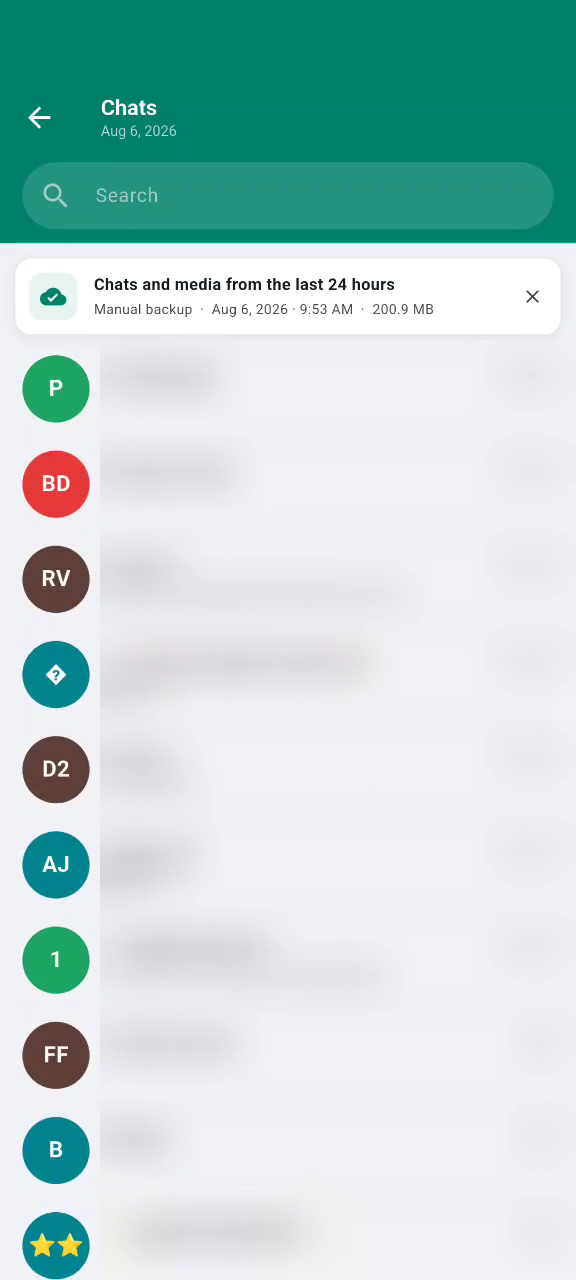
Open the Chats tab to read every backed-up conversation, view media and statuses, and manage old snapshots. Everything is decrypted on your device with your key, never on the server.
Not a promise, a design constraint. The server only ever holds locked files it has no key for.
The 64-digit key is stored in your phone's hardware keystore. It is never uploaded; the server only knows your phone number label.
Chats stay in WhatsApp's own encrypted format and media is encrypted on your device first. The cloud stores locked files only.
When you browse your archive, files come down still locked and are opened locally with your key. Nothing readable ever sits on the server.